Landis+Gyr E470 smart meter: how to use and troubleshoot
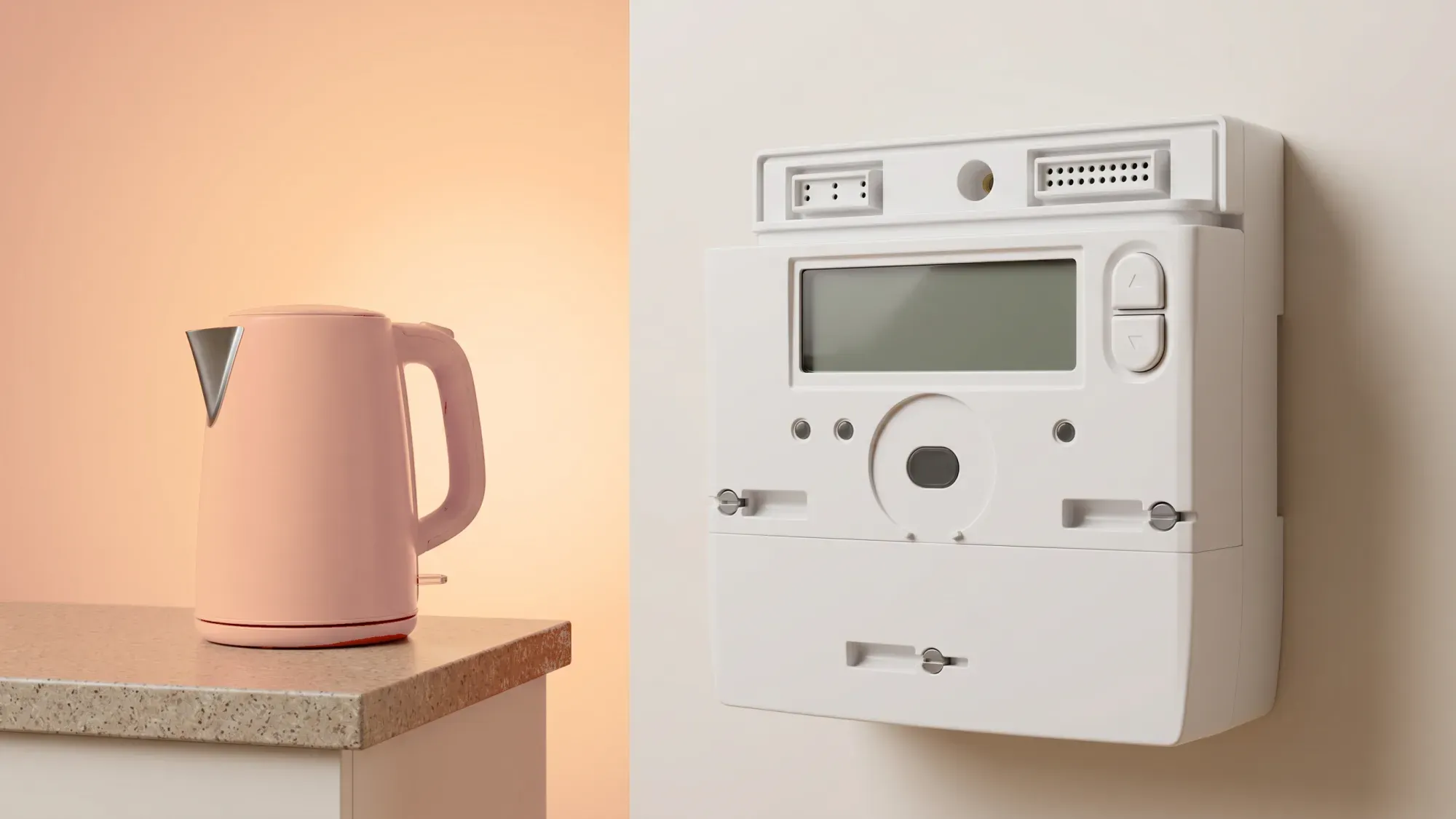
The Landis+Gyr E470 is a common smart meter found in many UK homes, designed to measure your energy consumption and automatically send readings to your energy supplier. Understanding how to use and troubleshoot your E470 meter can help ensure accurate billing and give you better insight into your household's energy use. This guide provides clear, actionable information to help you navigate its features and resolve common issues.
Managing your energy should be straightforward. Fuse Energy offers clear pricing, real-time usage data, and 24/7 human support to help you get the most from your smart meter. Click here to switch to Fuse Energy today.
Enter your address to get a quote and see how much you could save
What is the Landis+Gyr E470 smart meter?
The Landis+Gyr E470 is a widely installed smart meter model across UK homes, playing a crucial role in modern energy management. It is a compact, secure, and versatile SMETS2-compliant smart electricity meter.
Understanding its purpose in your home
Smart meters measure your energy consumption (electricity and/or gas) and automatically send these readings to your energy supplier. This removes the need for manual meter readings and estimated bills, helping to ensure accurate billing and providing you with real-time information about your energy usage. This data is often displayed on an in-home display (IHD) or through your supplier's app. The E470 is engineered for simple installation, seamless Data Communications Company (DCC) integration, and long-term performance.
Key features and components at a glance
The Landis+Gyr E470 typically features a digital display and two control buttons, often labelled 'A' and 'B'. These buttons allow you to navigate menus and view information. It records your electricity usage in kilowatt-hours (kWh). Some models also feature an LED that flashes to indicate active energy usage. The meter supports flexible tariffs and remote firmware updates.
Navigating your E470 display and buttons
Accessing your meter readings and understanding the information on your Landis+Gyr E470 is straightforward once you know which buttons to press.
How to read your electricity meter
To get your electricity reading from a Landis+Gyr E470, follow these steps:
- Wake the display: If the screen is blank, press any button (often 'A' or 'B') to activate it.
- Access tariff list: Hold button B to open the Tariff Display List. The first screen will show your first rate.
- Cycle through rates: Press button A to move to the next rate. For two-rate (Economy 7) tariffs, you will see separate readings for different periods, such as "Rate 01 Act Imp" (day) and "Rate 02 Act Imp" (night).
- Record the reading: Note down all the numbers before the decimal point.
How to read your gas meter
Specific instructions for reading a Landis+Gyr gas smart meter can vary by model. Generally, you will need to wake the display by pressing a button. The screen should then show your gas usage, typically in cubic metres (m³). Record the numbers from left to right, ignoring any zeros at the beginning and any numbers after the decimal point. Gas usage is measured in cubic metres before being converted to kWh for billing.
Understanding indicator lights and their meanings
Smart meters often have indicator lights that provide information about their status:
- Red LED: A flashing red LED typically indicates that energy is actively being consumed. The rate of flashing can correspond to the amount of energy being used.
- Green LEDs (on comms hub): If your electricity meter has a separate communications hub (often attached to the top), green LEDs on this hub usually indicate communication status. A steady or regularly flashing green light (e.g., every 5 seconds) often means the meter is communicating correctly. Irregular flashing or no light could indicate a communication issue.
SMETS1 vs SMETS2: what's the difference for your E470?
Smart meters are categorised as SMETS1 or SMETS2, which impacts their functionality and remote connectivity. The Landis+Gyr E470 can be either a SMETS1 or SMETS2 model.
Why your meter's SMETS version matters
SMETS stands for Smart Metering Equipment Technical Specifications. SMETS1 meters were the first generation, rolled out from 2013, while SMETS2 meters became the standard from 2018. The main difference lies in how they communicate with your energy supplier. SMETS2 meters are designed to communicate through a single, secure national network, operated by the DCC, ensuring they remain "smart" even if you switch suppliers.
How to identify your E470's SMETS type
Identifying whether your Landis+Gyr E470 is SMETS1 or SMETS2 can sometimes be tricky as they may look similar.
- Installation date: If your meter was installed before 2018, it is likely a SMETS1 meter. Installations from 2018 onwards are generally SMETS2.
- Communications hub: SMETS1 E470 meters often have a separate communications hub next to the meter. SMETS2 meters typically have the communications hub integrated or bolted directly to the top of the electricity meter.
- Contact your supplier: The most definitive way to confirm your meter's SMETS type is to contact your energy supplier.
Implications for functionality and switching suppliers
For SMETS1 meters, a common issue was losing smart functionality (e.g., automatic readings) when switching energy suppliers, as they were originally designed to communicate only with the installing supplier. However, many SMETS1 meters have now been remotely migrated onto the DCC network, allowing them to function like SMETS2 meters and retain smart features when you switch. SMETS2 meters offer improved reliability and are future-ready, supporting advanced tariffs and remote updates. You can learn more about the differences between SMETS1 and SMETS2 meters.
Troubleshooting common Landis+Gyr E470 issues
Encountering issues with your smart meter can be frustrating, but many common problems have straightforward troubleshooting steps.
My meter screen is blank or unresponsive
If your Landis+Gyr E470 screen is blank or unresponsive:
- Check for power outages: A power cut in your area could temporarily affect the display.
- Press a button: Try pressing and holding a button on the meter for about 10 seconds to wake the display. In most cases, the display goes to sleep to preserve battery, which is normal.
- Gas meter battery: For SMETS1 gas meters, a fully dead battery will close its internal safety valve, cutting off your gas supply. This is a safety feature, not a fault. If your gas meter is blank and you have no gas, contact your supplier immediately.
If the display remains unresponsive after these steps, contact your energy supplier. They can remotely diagnose the issue or arrange for a technician.
My smart meter is offline or not connecting
If your smart meter is offline, it means it is not communicating with your energy supplier. This can lead to estimated bills instead of accurate ones based on automatic readings.
- Check indicator lights: Look for any unusual flashing patterns or unlit communication lights on your meter or its communications hub.
- Contact your supplier: Your energy supplier can investigate connectivity issues remotely, though resolution may take some time. They are responsible for ensuring your smart meter operates in smart mode.
Readings are not being sent automatically
If your meter is not sending readings automatically, it is usually due to a loss of communication (i.e., the meter is offline). This means you might receive estimated bills.
- Check your IHD: If your in-home display is also not showing up-to-date usage, it is a strong sign of a communication problem.
- Submit manual readings: While your supplier works to restore connectivity, you may need to submit manual readings to ensure your bills remain accurate. You can find more information on smart meter readings.
- Contact your supplier: Report the issue to your energy supplier, as they are responsible for maintaining your meter's smart functionality. They may need to configure a read schedule or investigate further.
What to do if you experience a loss of supply
A loss of supply can be concerning. Here is what to do:
- Check your neighbours: See if your neighbours also have a power cut. If they do, it might be a wider network issue. For electricity power cuts, you should contact your Distribution Network Operator (DNO) by calling 105. You can also find your DNO using the Energy Networks Association's "Find my network operator" tool.
- Check your meter: For electricity, if you have a prepayment meter, check if you have run out of credit. If so, top up or activate emergency credit. You may need to reconnect the supply by pressing the 'B' button if the screen shows "EN SUPPLY, A=NO, B=YES".
- Gas supply issue: If you have a gas supply issue (not a gas leak), contact your energy supplier.
- Gas leak: If you smell gas, call the National Gas Emergency Service on 0800 111 999 immediately. Do not smoke, turn electrical switches on or off, or use phones indoors. Open doors and windows, and turn off the meter at the control handle if safe.
- Do not reset: Never attempt to reset or tamper with the meter yourself, as this can be dangerous and is not recommended.
Getting the most from your smart meter
Understanding your Landis+Gyr E470 smart meter is the first step towards better energy management.
Managing your energy with the Fuse app
The Fuse app provides an intuitive way to track energy usage from smart meters like the Landis+Gyr E470. It empowers you with clear data, helping you understand your energy habits and identify opportunities to save. By integrating your smart meter data, the app makes managing your energy more transparent and accessible.
When to contact your energy supplier for support
Your energy supplier is responsible for installing and maintaining your smart meter. You should contact them for:
- Meter faults: If your meter is physically damaged or consistently displaying errors.
- Connectivity issues: If your meter is not sending readings automatically or your IHD is not working.
- Gas supply issues: If you have no gas supply (but no smell of gas).
- SMETS version queries: If you need to confirm whether your E470 is SMETS1 or SMETS2.
- Upgrades: To discuss upgrading your smart meter or for any maintenance.
Fuse Energy offers human customer support to assist with smart meter issues and troubleshooting, providing reassurance beyond self-service guides.
Upgrading your smart meter for better performance
Energy suppliers have an obligation to offer and install smart meters for eligible domestic customers across Great Britain. If you have an older SMETS1 meter that has not been migrated or is consistently losing smart functionality, your energy supplier may offer a free replacement with a SMETS2 meter. SMETS2 meters offer improved interoperability and remote updates, ensuring your meter remains smart even if you switch suppliers. This helps you manage your energy effectively, moving towards a future where energy is easily controlled.
Managing your home's energy should be simple and transparent. With Fuse Energy, you get clear pricing, real-time usage data through the app, and dedicated human support whenever you need it. Our quick online sign-up process means you can take control of your energy bills in minutes. Click here to switch to Fuse Energy today and discover a smarter way to power your home. You can also learn more about our mission to make energy fairer and greener here.
Disclaimer
For the avoidance of doubt, this article is provided for informational purposes only and is not intended to constitute legal or financial advice. The author and/or Fuse Energy shall not be responsible for any losses arising out of any reliance on the information contained herein.