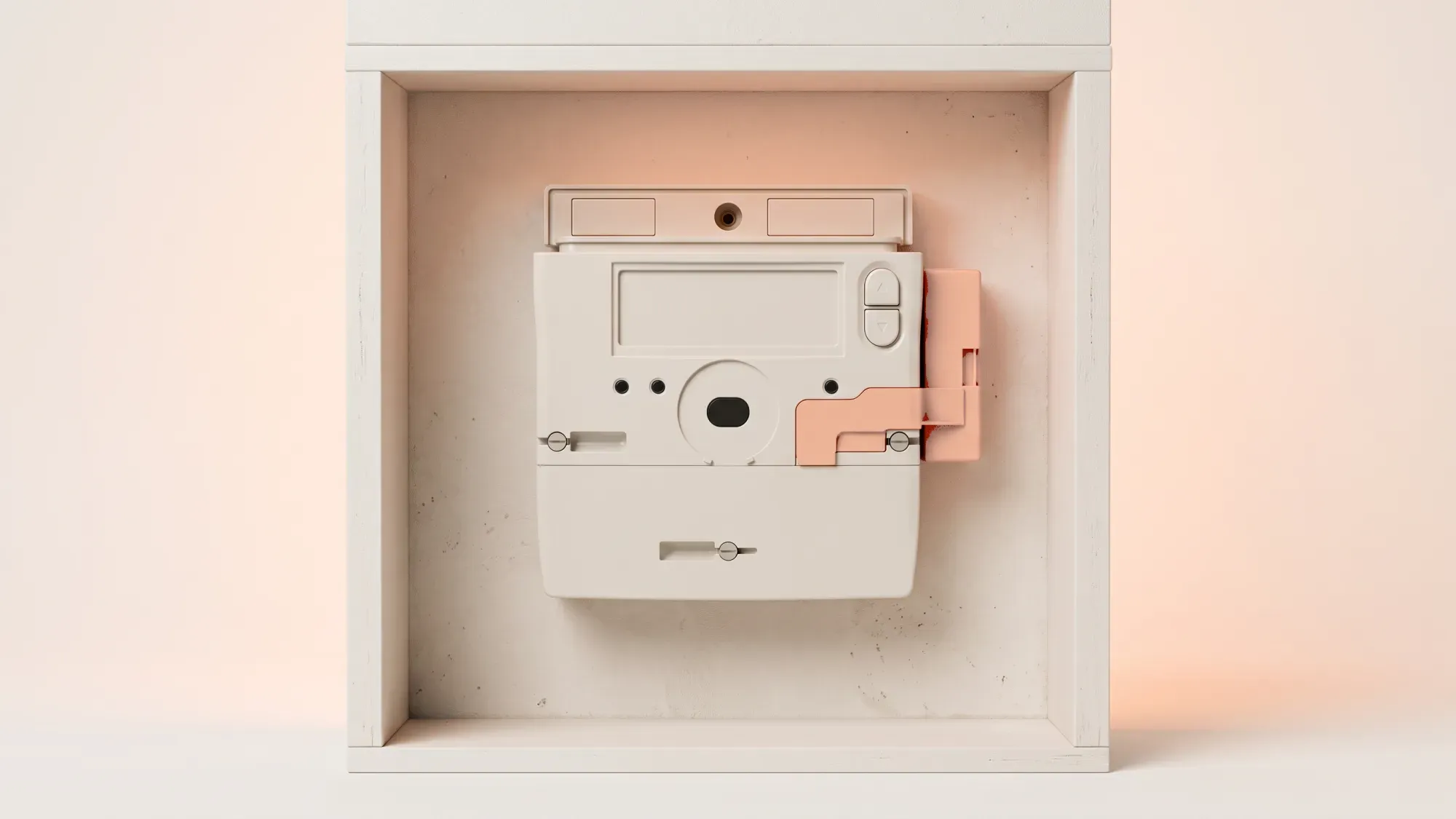
Understanding your smart meter helps you manage your energy effectively, putting you in control of your usage and costs. This article provides guidance on using and troubleshooting your EDMI GS-60B smart meter.
What is the EDMI GS-60B?
The EDMI GS-60B is a SMETS2-compliant smart meter designed for both gas and electricity supply. SMETS2 (Smart Metering Equipment Technical Specifications 2) is the latest standard in the UK, ensuring meters meet high standards for interoperability and security. This advanced meter automatically sends energy readings to your supplier, reducing the need for manual submissions and enabling more accurate billing.
Key features and benefits
A primary benefit of smart meters is their ability to automatically send your energy readings to your supplier. This means you receive accurate bills, rather than estimated ones. Smart meters help you track your energy consumption more accurately, which can lead to better energy management. Your in-home display (IHD) shows your energy use in near real-time, expressed in pounds and pence.
SMETS2 compliance explained
SMETS2 is the second-generation standard for smart meters in Great Britain, launched in 2018. This compliance ensures the meter should remain 'smart' even if you switch energy suppliers, as it connects to the Data Communications Company (DCC) network from installation. Ofgem, the energy regulator, oversees suppliers' compliance with smart metering obligations.
Your energy usage data is typically sent to your supplier automatically. Smart meters installed since November 2022 send readings every half hour by default, while older ones typically send daily readings, with options to adjust the frequency.
Navigating the meter interface
Your smart meter typically has buttons to navigate its display. Pressing any button will usually wake up the display if it's in power-saving mode. You can then use the buttons to scroll through the different screens and access information.
Reading your electricity consumption
To read your electricity consumption, wake the meter display and navigate through the menu options until you find the screen showing your electricity usage, usually displayed in kilowatt-hours (kWh). The specific path may vary, but it will typically be under a 'Readings' or 'Consumption' menu.
Reading your gas consumption
For gas consumption, wake the meter and navigate to the gas reading screen. Your gas usage will be shown in cubic metres (m³) or cubic feet (ft³). This volume is then converted into kWh for billing purposes.
Understanding error codes and symbols
Your meter's display may show various messages or symbols. If you see an unfamiliar error code or symbol, it's best to consult your meter's user manual or contact your energy supplier for clarification.
Low battery warnings on gas meters
Gas smart meters are powered by a sealed, long-life battery, typically designed to last 10 to 15 years, or even up to 20 years with advanced technology. This battery is not user-replaceable. If your gas meter displays a low battery warning, it indicates the battery is nearing depletion. When the battery is low, the meter sends a warning to your energy supplier, who is responsible for arranging a replacement of the entire meter, as there is no battery replacement service for gas meters. A battery failure can result in a loss of gas supply.
No display or blank screen
If your smart meter display is blank, first try pressing any button to wake it up. The meter might be in a power-saving mode, which is normal for gas meters to preserve battery life. If the screen remains blank, especially on a gas meter, it could indicate a fully depleted battery, which would require a meter replacement arranged by your supplier.
Gas supply interruption
If your gas supply has been interrupted, you should contact your energy supplier for support. They can help diagnose the issue and advise on the necessary steps to restore your supply.
Meter not sending readings
Smart meters are designed to send readings automatically to your energy supplier. If you suspect your meter isn't sending readings, it might be offline. Your supplier can often diagnose and resolve connectivity issues remotely. If the issue persists, contact your energy supplier for support. Ofgem has introduced new rules from February 2026, requiring suppliers to provide a resolution plan within five working days of a smart meter problem being reported.
Connecting your meter to the Fuse app
As a Fuse Energy customer, you can view your smart meter data and manage your energy through the intuitive Fuse app. This allows you to track your consumption regularly, helping you make informed decisions about your energy use.
When to contact Fuse customer support
You should contact Fuse customer support for advanced troubleshooting or if you encounter persistent meter issues. We can help diagnose problems and arrange for engineer visits if necessary.
Managing your energy bills should be clear and easy to understand. Fuse Energy focuses on straightforward pricing, so you can see exactly what you're paying without unnecessary complexity. If you have a smart meter, you can view detailed usage data through the app or website, helping you understand how you can lower your bills. If you don't have a smart meter, Fuse Energy can upgrade your non-smart meter, completely for free. This can make it easier to track spending and make informed decisions about your energy use. Our 24/7 human support team is always on hand with fast response times whenever you need help. Click here to switch to Fuse Energy today. Find out about our mission by clicking here.